
In our article, FAQs About the Impact Platform, we touched on how affiliates can optimize their efforts on Impact. In this article, we highlight two of the most common issues we see affiliates encounter on the Impact platform.
One of the biggest advantages to being an Automattic Affiliate Program member is being able to promote many different brands within a single affiliate program. However, when working with multiple brands, it’s possible to accidentally create a link for one brand when you want to promote another.
It’s important that affiliates learn to consistently create accurate affiliate links to promote each of the specific brands and products in the Automattic Affiliate Program. There are two main ways you can create links to product pages:
- You can use Impact’s link-building tool to get a URL for any Automattic brand or product.
- You can leverage creative assets under the Assets tab in Impact.
Understanding both methods will help you optimize your marketing efforts and avoid common mistakes like linking to the wrong product or page.
As an Automattic affiliate, you can use Impact’s link-building tool to obtain a URL for any participating Automattic brand. While the default link in the “Create and Share Link” tool is WordPress.com, you can use this tool to link to any of the valid domains in the program.
Here is a step-by-step guide to generating a link using the link-building tool in Impact:
- First, log into Impact with your credentials.
- On your dashboard, you will see a window on the right that looks like this:
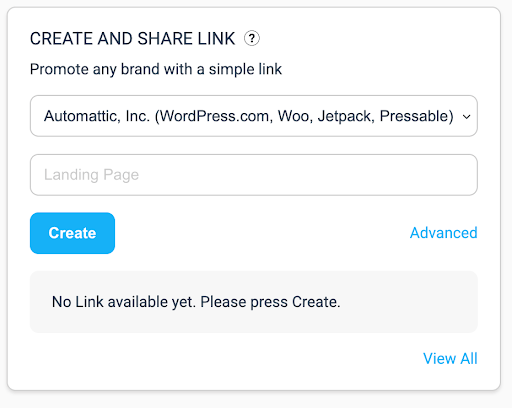
- The dropdown menu allows you to choose between different affiliate programs. To select the Automattic Affiliate Program, pick ‘Automattic, Inc.’ as shown above. Choose ‘Automattic, Inc’ if it’s not already selected. If you’re partnered with other brands, they’ll also appear here as selectable options.
- In the ‘Landing Page’ field, insert the URL to whatever product you want to create a link for. You can create a link to any URL of any of the supported brand URLs, including:
- WordPress.com
- Jetpack.com
- WooCommerce.com
- SenseiLMS.com
- Wpjobmanager.com
- Akismet.com
- Pressable.com
- Hit “Create” to generate the link.
Note: If you leave the landing page blank, you’ll get a link to the WordPress.com homepage.
You can link to individual pages of products, or any specific page, not just homepages. This is called “Deep Linking.” For example, if you want to link to a specific extension on WooCommerce.com, you could put https://woocommerce.com/products/booking-and-appointment/ in the landing page field and click “create link.”
For a specific page promoting WordPress.com to a blogger audience, you could input https://wordpress.com/create-blog/. If you want to link to a specific blog post on Pressable, you could link to https://pressable.com/blog/woocommerce-multisite/.
There are also links to each of those main websites as well as some optimized landing pages in the assets section in the form of text links and banners, if you want to include a promotional image.
Another way to generate accurate links for different Automattic products is to leverage the banners and images in the Assets section of Impact. Assets help you promote products with attractive creative that contain links to relevant pages.
Here’s a step-by-step guide for locating creative assets in Impact:
- At the right-hand top menu, click on the “Content” dropdown menu:
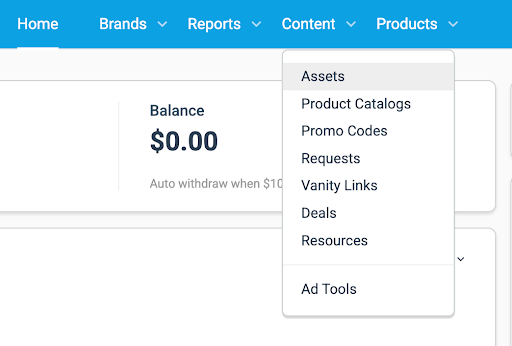
2. “Assets” will be the first in the menu. Click on “Assets.”
3. All the current assets for every participating Automattic brand will appear.
4. Scroll through to find the asset you want to use, or use the search bar in the right-hand corner and type in the product name.
For example, below, we’re searching for Pressable links, banners, and deals. You can filter the selection further on the left.

Once you click on the Asset, you can copy and paste the URL or the HTML code, which will include the banner, if there is one. There are reports in Impact that show you the individual performance of the different assets you use in your promotions.
Accurate and well-targeted affiliate links to the right page at the right time are an important way to increase your affiliate traffic and commissions.
Our goal on this microsite is to provide educational, informative content that helps Automattic Affiliate Program affiliates thrive in the program. If you have further questions about creating links for Automattic brands and products on Impact, please email us at: affiliates@automattic.com.
 Automattic Affiliate Program - Knowledge Base